
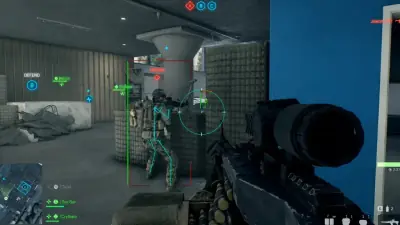
Battlefield 6 Cheat Setup: Secure Boot, TPM and the Order That Boots
Battlefield 6 refuses to launch without Secure Boot and TPM 2.0. Get the firmware right first, then follow the install order exactly.
Battlefield 6 is unusual in that the setup checklist starts in firmware before it starts in Windows. The game requires Secure Boot to launch, and TPM 2.0 has been enforced since late August. Our build needs both plus HVCI and Core Isolation, because Cloud DMA does.
So the two jobs are the same job. Fixing Battlefield 6 and fixing the build is one checklist.
Step 1: Windows version
Windows 10 or 11, 64-bit, current build. A stale build fights you twice, once in Windows and once at the launcher.
Step 2: Firmware, in this order
Reboot into BIOS or UEFI.
Enable virtualization. Intel VT-x or AMD-V, under CPU configuration or advanced features.
Enable TPM. PTT on Intel, fTPM on AMD, both under security or trusted computing. A discrete module works too.
Enable Secure Boot. Needs UEFI mode, not legacy CSM. If the option is greyed out, CSM is on and has to be disabled, and the disk may need to be GPT.
Save and reboot.
Step 3: Confirm in Windows
Task Manager, Performance, CPU. Virtualization must read enabled.
Windows Security, Device Security, Core Isolation. Memory Integrity on.
tpm.msc. Status ready.
System Information, System Summary. Secure Boot state on.
If any fails, stop and fix it. Battlefield 6 will fail the same checks with a message that says Secure Boot and usually means something else.
Step 4: Memory and GPU
16 GB is realistic for Battlefield 6 plus a Hyper-V environment. Close the browser before provisioning. A dedicated GPU is expected.
Step 5: Overlays off
Discord overlay, GeForce overlay, the EA app overlay, any capture hook. Off for the first launch.
Step 6: Install order
Cloud DMA first, as administrator. Then the supporting pieces. Then the game.
Cloud DMA is its own purchase and not the whole stack. GREENWARD, Static Server and AWS are separate, all required, and Static Server and AWS are two different products. None are bundled in the Cloud DMA checkout.
Let provisioning finish. Let activation complete over the encrypted service link. Read the installer notes for your Windows edition.
Step 7: Launch order
Reboot cleanly first.
- Boot, let the machine settle
- Confirm the Cloud DMA layer is up
- Launch Battlefield 6 from Steam, the EA app or Epic
- Reach the main menu or a match
- Start the loader, wait for the menu
Loader before the game process is the top cause of an empty menu.
Step 8: First run checks
Menu key is INSERT. If it appears, verify:
- player ESP on a live match
- a distance slider accepting a value
- a toggle responding
- panic key hiding the menu
All four means live. Menu up with nothing drawing is a partial load.
Mistakes worth naming
Leaving CSM on. Secure Boot cannot enable in legacy mode and Battlefield 6 will not launch.
Giving up on a greyed out Secure Boot option. That is CSM, not a dead board.
Turning Memory Integrity off to fix a stutter. It returns as a worse problem.
Launching from the installer. Provisioning needs a clean reboot.
Installing with the game open. Close it.
When to stop
If Secure Boot and TPM are confirmed, all four settings pass, overlays are off and the menu will not appear, open a ticket with your Windows build, the four states, the loader version and the installer output.
Setup is a one time cost. Do it once properly and the rest is config work.